Promises
The follow-up you said you’d send.
Bring commitments from captured conversations back into view, with the person and timing attached when available.
Your promises and your AI’s promises stay distinct. You can see who owes the next step.
 distilligentLet’s talk
 Pulse · in your MindSpace
Your promises. Your people.
The things still waiting for you.
Bring signals from your connected work into focus—what needs attention, why it matters, and what you can do next.
Open MindSpace with Google. Connect the sources you choose.
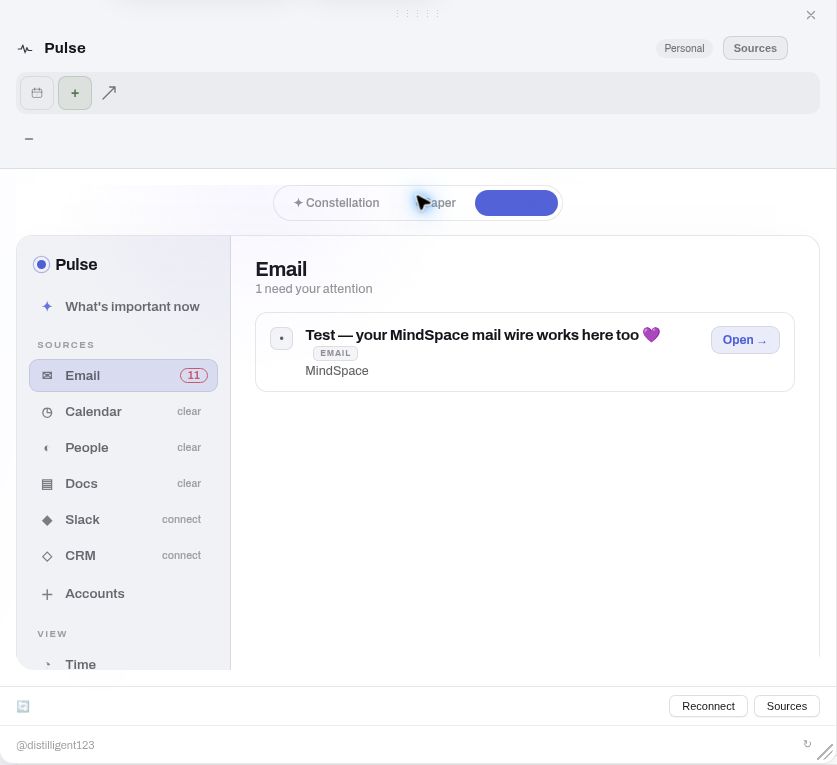
A little less to carry
Check the email. Find the document. Remember what you agreed. Before doing the work, you often have to put the situation back together. Pulse helps bring those pieces back to you.
Promises
Bring commitments from captured conversations back into view, with the person and timing attached when available.
Your promises and your AI’s promises stay distinct. You can see who owes the next step.
Decisions
Pick up the conversation where it paused. See the unfinished questions that still need a choice.
Something awaiting a decision stays separate from something you’ve already decided.
Documents
Find the document you haven’t opened, the edits to your draft, or the comment waiting for your response.
Bring that waiting work into view alongside your other connected sources.
Your week. Your direction.
Your stated focus helps bring matching work forward for that period. As your priorities change, you can change the direction. Feedback on individual items helps you steer, too.
An example of a priority you can set
“This week,
the demo matters.”
Give your week a direction.
Let the matching work come into view.
Your next move
Pulse names the source and explains why an item surfaced. Follow it back to the original and judge it for yourself.
Supported Gmail replies
Prepare the message, then choose what happens. You can edit it or leave it unsent.
See the recipient and exact message.
You decide when it is ready to send.
See the send status and what happened.
A sent reply records that step. The work behind it may still need your attention.
Before you begin
In MindSpace. Pulse brings your connected work into focus; MindSpace gives you and your AI a place to think and work with that context.
Start with the sources available in your account, including Gmail, Calendar and Drive where enabled. Pulse can also bring in captured conversations and connected development activity.
Yes. A stated priority such as your focus for the week helps shape the ranking of matching work. Feedback on Pulse items also helps you steer what is useful.
For supported Gmail replies, Pulse prepares a message for you to review. You see the recipient and exact text, can edit it, and approve before it sends. The send status records what happened.
Start with your own day
Open MindSpace. Connect an available source. Explore what Pulse brings forward—and tell it what matters to you.
Start your spaceSources and actions depend on the connections enabled for your account.
Explore the rest of your room